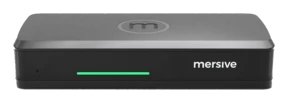
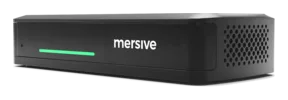
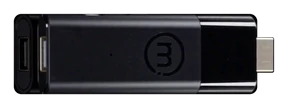
Meet Mersive Polaris: wireless screen sharing from any browser.
One platform turns every display into a shared workspace: joined from a browser, BYOM and client agnostic, managed from one cloud.
Glass. Workspace. Cloud.
Three layers, one platform: the display renders, the workspace composites, the cloud connects and manages. Expand any layer for the plain-language depth.
- JoinDevices dial out to Polaris Cloud, which authenticate, resolve the screen key, trade SDP and ICE.
- ConnectThe cloud introduces them and steps aside. Media runs on direct links to the pod: in the room it never leaves the building, and from outside it never touches a VPN.
- ComposeShares land side by side on the display as one workspace, and the same workspace renders live in the browser for everyone who isn’t in the room.
Layer 1 · in the roomThe glassAny display becomes a Polaris endpoint: meeting room, classroom, lobby wall.
+ more
The display stops being a destination you cable into and becomes a rendering target: the Polaris device behind it draws whatever the workspace says to draw.
- Any display qualifies. The panel you already own, driven by a Polaris device behind it: no smart-panel firmware to depend on, no vendor-matched displays.
- In Polaris Pro rooms, the AV plugs in here. Camera and mic cable into the Pro device, so meetings can borrow them wirelessly.
- Idle displays still work. When no one is sharing, the same display runs signage, managed from the same portal. Signage →
Layer 2 · the unit of workThe workspaceEvery share, side by side, composited live, fed from any device, in-room or remote.
+ more
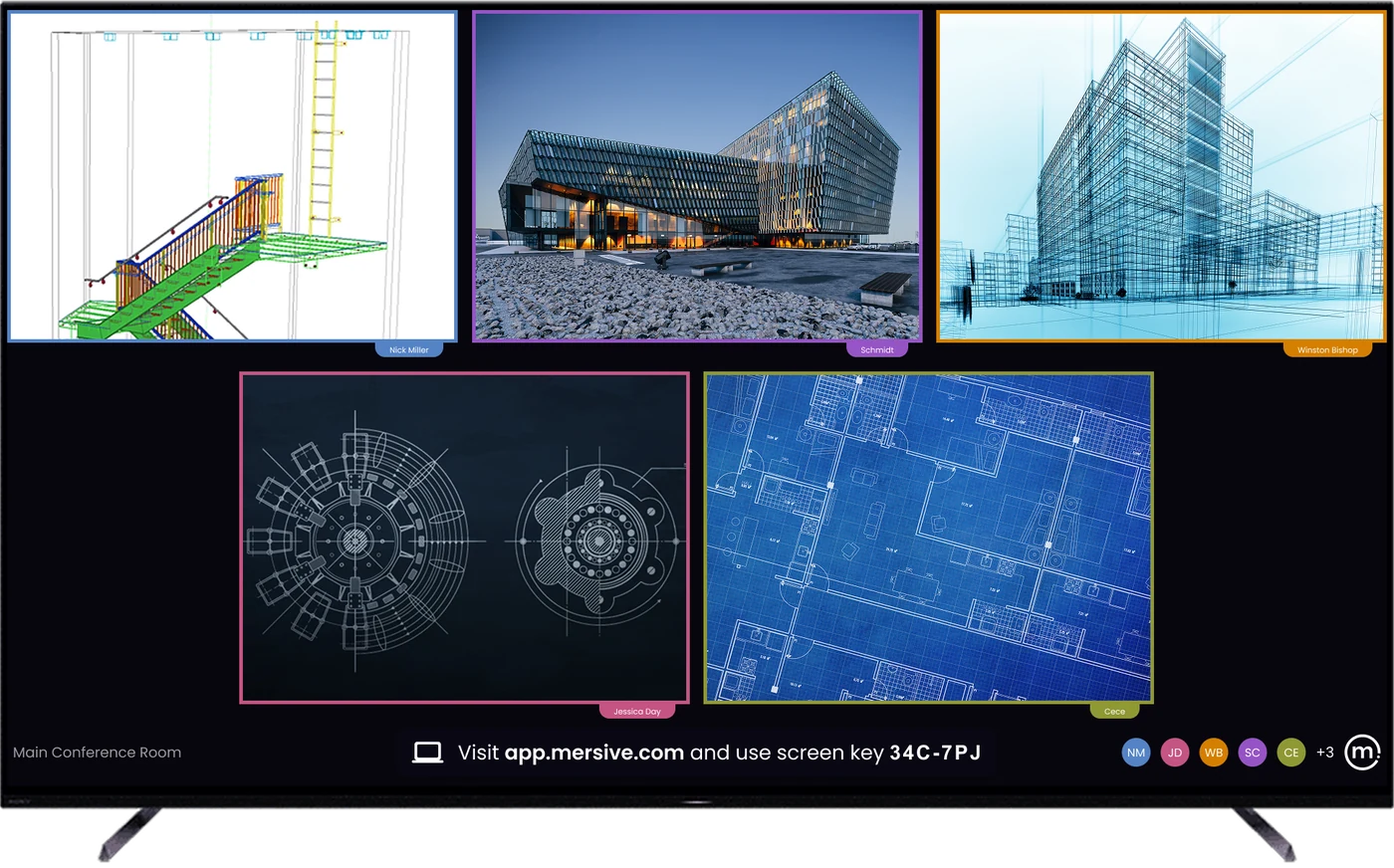
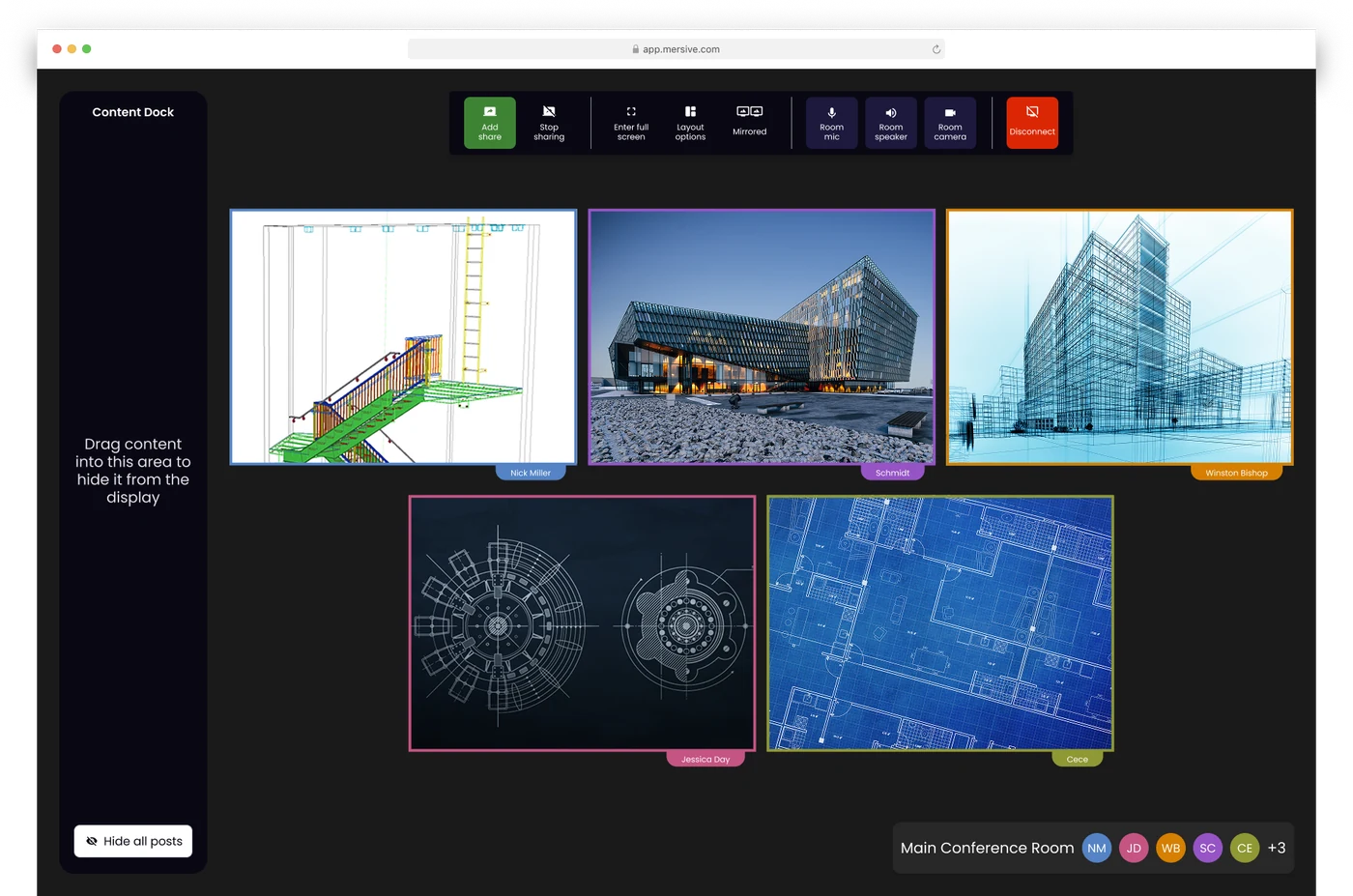
The workspace is what makes the display worth looking at: not one mirrored screen but a composited canvas of simultaneous sources, mirrored live to every participant signed in at app.mersive.com.
- Multi-source, live. A deck from a laptop, a guest's browser tab, photos from a phone, a dashboard from another building: side by side, rearranged from the Dock.
- Any device feeds it. Native share or web-join from the browser; sources from other networks arrive via cross-network sharing.
- It belongs to the room. The workspace is rendered by the room's Polaris hardware, not by whichever laptop happens to be open, so shutting a lid does not end the meeting; it just removes the content from that device while everything else stays exactly where it was.
Layer 3 · above the fleetThe cloudRoutes every workspace, manages every room: one admin plane for the whole fleet.
+ more
Polaris Cloud does two jobs: it introduces sessions (the signaling that lets endpoints find each other across networks) and it runs the fleet, which is conference room management for every room and screen you own.
- Session brokering. Devices and displays find each other through the cloud; same-network traffic stays on your LAN; cross-network traffic flows over a WebRTC direct, encrypted connection the cloud negotiated.
- Conference room management. Bulk config, templates by room type, staged firmware, analytics and health alerts, for meeting rooms and signage alike, from one login. Polaris Cloud →
- What it doesn't do. Store your workspace content. The candid data-path story lives in the Trust Center.
How to share your screen from a browser
Sharing from the browser does not require an app, downloading, installs or admin rights; you share to the room display from a browser tab. A guest who walked in can share, and there is no client to package, approve, patch, or manage.
Four steps, zero software:
Web-join works on any device with a current browser, Chromebooks and locked-down loaners included. Phones share through the Mersive app or native protocol.
The 6-character key is on the display. Every key is globally unique and expires ten minutes after it’s issued.
Your share lands in the workspace next to everyone else’s, composited live, not queued behind a presenter.
Layout, participants, handoff, end meeting: the room’s controls live in the same browser tab you joined from.
Web share is the front door. It isn't the only door.
The workspace takes whatever the room brings. Web-join is the predominant path, but native casting and the Mersive mobile apps land on the same display, and they all composite together.
The browser share: no install, cross-network, guest-proof. The predominant path.
Share and control from the phone in your pocket. iOS & Android.
An HDMI source joins the workspace as a tile by default. Direct bypass takes the glass full screen and keeps that feed in the room.
Native Apple sharing: no Mersive software on the device.
Native Windows sharing, straight from the OS.
Chromecast from Chrome and Android: the Chromebook classroom's native path.
Everyone sees what the display shows.
Meeting parity (what remote participants see): every source shared into the room is delivered to everyone who joined at app.mersive.com, and the layout travels with it. Order, focus, full-screen and position stay in step, because the room and every browser run the same layout code.
So a remote seat reproduces what the display shows at its own screen’s resolution rather than watching a video of the room’s screen. No craning at the display, no “can you re-share that,” no second-class seats.
Polaris Pro has two wired HDMI input modes, selected by the room administrator. Workspace tile is the default: the input joins the workspace alongside wireless shares and is visible to remote participants. Direct bypass (full-screen pass-through) sends the input straight to the room display, outside the workspace. Remote participants do not receive that feed.
Where a panel stops and the room silicon starts.
A workspace is a compositing problem: a roomful of people sharing at once means many simultaneous decode sessions rendered into one layout, and bridging your meeting to the room's AV adds real-time encode on top.
That takes purpose-built silicon, not a display's spare cycles.
Around 5 simultaneous shares on Essentials and 10 on Pro. It is a memory ceiling on the chassis, not a license: nothing in the software counts sources or refuses one, so the limit is what the silicon can hold, and the two tiers run the same code.
What this buys you in the room: a panel’s composite stays on its own glass; Polaris encodes the whole meeting out to every participant, and Polaris Pro keeps enough encode headroom to hand the room’s camera and mic to your Teams, Zoom, Webex, or Meet call.
Evaluating Polaris? Start with these four reads.
Cross-network sharing
Content crosses subnets, VLANs, and the internet: no VPN, no UC call. Of the twelve competitors we checked in August 2026, exactly one documents a comparable off-LAN path, and it wants two ephemeral port ranges, XMPP and STUN/TURN/ICE, with signaling hosted in Azure West Europe. The other eleven document LAN-local media only.
The flagship deep-dive →Security architecture
The trust chain, network posture, and update policy: the ten-minute read your security team actually wants. Nothing gated.
The Trust Center →Where meetings live
Two questions classify every room ever built. This grid is the map, and Polaris is the only platform we know of holding all three agnostic models.
Where meetings live →Hybrid meetings
BYOM today, hosted-BY-the-room next: how the meeting leaves the laptop for good, with native clients, chosen per meeting.
The hybrid family →Also: the 10-year platform and its invariants · the tier table · Polaris Cloud · the 10-year math
See the platform live.
Hardware trials ship for every product, direct from Mersive. When the rooms prove it, we introduce your regional partner for the rollout.
Start a trial Watch on YouTube ↗